
# AIClient-2-API 🚀
**A powerful proxy that can unify the requests of various client-only large model APIs (Gemini CLI, Antigravity, Qwen Code, Kiro ...), simulate requests, and encapsulate them into a local OpenAI-compatible interface.**

[](https://www.gnu.org/licenses/gpl-3.0)
[](https://nodejs.org/)
[](https://hub.docker.com/r/justlikemaki/aiclient-2-api)
[](https://github.com/justlovemaki/AIClient-2-API/stargazers)
[](https://github.com/justlovemaki/AIClient-2-API/issues)
[中文](./README-ZH.md) | [**👉 English**](./README.md) | [日本語](./README-JA.md) | [**📚 Documentation**](https://aiproxy.justlikemaki.vip/en/)
`AIClient2API` is an API proxy service that breaks through client limitations, converting free large models originally restricted to client use only (such as Gemini, Antigravity, Qwen Code, Kiro) into standard OpenAI-compatible interfaces that can be called by any application. Built on Node.js, it supports intelligent conversion between OpenAI, Claude, and Gemini protocols, enabling tools like Cherry-Studio, NextChat, and Cline to freely use advanced models such as Claude Opus 4.5, Gemini 3.0 Pro, and Qwen3 Coder Plus at scale. The project adopts a modular architecture based on strategy and adapter patterns, with built-in account pool management, intelligent polling, automatic failover, and health check mechanisms, ensuring 99.9% service availability.
> [!NOTE]
> **🎉 Important Milestone**
>
> - Thanks to Ruan Yifeng for the recommendation in [Weekly Issue 359](https://www.ruanyifeng.com/blog/2025/08/weekly-issue-359.html)
>
> **📅 Version Update Log**
>
> - **2026.01.03** - Added theme switching functionality and optimized provider pool initialization, removed the fallback strategy of using provider default configuration
> - **2025.12.30** - Added main process management and automatic update functionality
> - **2025.12.25** - Unified configuration management: All configs centralized to `configs/` directory. Docker users need to update mount path to `-v "local_path:/app/configs"`
> - **2025.12.11** - Automatically built Docker images are now available on Docker Hub: [justlikemaki/aiclient-2-api](https://hub.docker.com/r/justlikemaki/aiclient-2-api)
> - **2025.11.30** - Added Antigravity protocol support, enabling access to Gemini 3 Pro, Claude Sonnet 4.5, and other models via Google internal interfaces
> - **2025.11.16** - Added Ollama protocol support, unified interface to access all supported models (Claude, Gemini, Qwen, OpenAI, etc.)
> - **2025.11.11** - Added Web UI management console, supporting real-time configuration management and health status monitoring
> - **2025.11.06** - Added support for Gemini 3 Preview, enhanced model compatibility and performance optimization
> - **2025.10.18** - Kiro open registration, new accounts get 500 credits, full support for Claude Sonnet 4.5
> - **2025.09.01** - Integrated Qwen Code CLI, added `qwen3-coder-plus` model support
> - **2025.08.29** - Released account pool management feature, supporting multi-account polling, intelligent failover, and automatic degradation strategies
> - Configuration: Add `PROVIDER_POOLS_FILE_PATH` parameter in `configs/config.json`
> - Reference configuration: [provider_pools.json](./configs/provider_pools.json.example)
> - **History Developed**
> - Support Gemini CLI, Kiro and other client2API
> - OpenAI, Claude, Gemini three-protocol mutual conversion, automatic intelligent switching
---
## 💡 Core Advantages
### 🎯 Unified Access, One-Stop Management
* **Multi-Model Unified Interface**: Through standard OpenAI-compatible protocol, configure once to access mainstream large models including Gemini, Claude, Qwen Code, Kimi K2, MiniMax M2
* **Flexible Switching Mechanism**: Path routing, support dynamic model switching via startup parameters or environment variables to meet different scenario requirements
* **Zero-Cost Migration**: Fully compatible with OpenAI API specifications, tools like Cherry-Studio, NextChat, Cline can be used without modification
* **Multi-Protocol Intelligent Conversion**: Support intelligent conversion between OpenAI, Claude, and Gemini protocols for cross-protocol model invocation
### 🚀 Break Through Limitations, Improve Efficiency
* **Bypass Official Restrictions**: Utilize OAuth authorization mechanism to effectively break through rate and quota limits of services like Gemini, Antigravity
* **Free Advanced Models**: Use Claude Opus 4.5 for free via Kiro API mode, use Qwen3 Coder Plus via Qwen OAuth mode, reducing usage costs
* **Intelligent Account Pool Scheduling**: Support multi-account polling, automatic failover, and configuration degradation, ensuring 99.9% service availability
### 🛡️ Secure and Controllable, Data Transparent
* **Full-Chain Log Recording**: Capture all request and response data, supporting auditing and debugging
* **Private Dataset Construction**: Quickly build proprietary training datasets based on log data
* **System Prompt Management**: Support override and append modes, achieving perfect combination of unified base instructions and personalized extensions
### 🔧 Developer-Friendly, Easy to Extend
* **Web UI Management Console**: Real-time configuration management, health status monitoring, API testing and log viewing
* **Modular Architecture**: Based on strategy and adapter patterns, adding new model providers requires only 3 steps
* **Complete Test Coverage**: Integration and unit test coverage 90%+, ensuring code quality
* **Containerized Deployment**: Provides Docker support, one-click deployment, cross-platform operation
---
## 📑 Quick Navigation
- [🐳 Docker Deployment](https://hub.docker.com/r/justlikemaki/aiclient-2-api)
- [🔧 Usage Instructions](#-usage-instructions)
- [❓ FAQ](#-faq)
- [📄 Open Source License](#-open-source-license)
- [🙏 Acknowledgements](#-acknowledgements)
- [⚠️ Disclaimer](#️-disclaimer)
---
## 🔧 Usage Instructions
### 🚀 Quick Start
The most recommended way to use AIClient-2-API is to start it through an automated script and configure it visually directly in the **Web UI console**.
#### 🐳 Docker Quick Start (Recommended)
```bash
docker run -d -p 3000:3000 -p 8085:8085 -p 8086:8086 -p 19876-19880:19876-19880 --restart=always -v "your_path:/app/configs" --name aiclient2api justlikemaki/aiclient-2-api
```
**Parameter Description**:
- `-d`: Run container in background
- `-p 3000:3000 ...`: Port mapping. 3000 is for Web UI, others are for OAuth callbacks (Gemini: 8085, Antigravity: 8086, Kiro: 19876-19880)
- `--restart=always`: Container auto-restart policy
- `-v "your_path:/app/configs"`: Mount configuration directory (replace "your_path" with actual path, e.g., `/home/user/aiclient-configs`)
- `--name aiclient2api`: Container name
#### 1. Run the startup script
* **Linux/macOS**: `chmod +x install-and-run.sh && ./install-and-run.sh`
* **Windows**: Double-click `install-and-run.bat`
#### 2. Access the console
After the server starts, open your browser and visit:
👉 [**http://localhost:3000**](http://localhost:3000)
> **Default Password**: `admin123` (can be changed in the console or by modifying the `pwd` file after login)
#### 3. Visual Configuration (Recommended)
Go to the **"Configuration"** page, you can:
* ✅ Fill in the API Key for each provider or upload OAuth credential files
* ✅ Switch default model providers in real-time
* ✅ Monitor health status and real-time request logs
#### Script Execution Example
```
========================================
AI Client 2 API Quick Install Script
========================================
[Check] Checking if Node.js is installed...
✅ Node.js is installed, version: v20.10.0
✅ Found package.json file
✅ node_modules directory already exists
✅ Project file check completed
========================================
Starting AI Client 2 API Server...
========================================
🌐 Server will start on http://localhost:3000
📖 Visit http://localhost:3000 to view management interface
⏹️ Press Ctrl+C to stop server
```
> **💡 Tip**: The script will automatically install dependencies and start the server. If you encounter any issues, the script provides clear error messages and suggested solutions.
---
### 📋 Core Features
#### Web UI Management Console
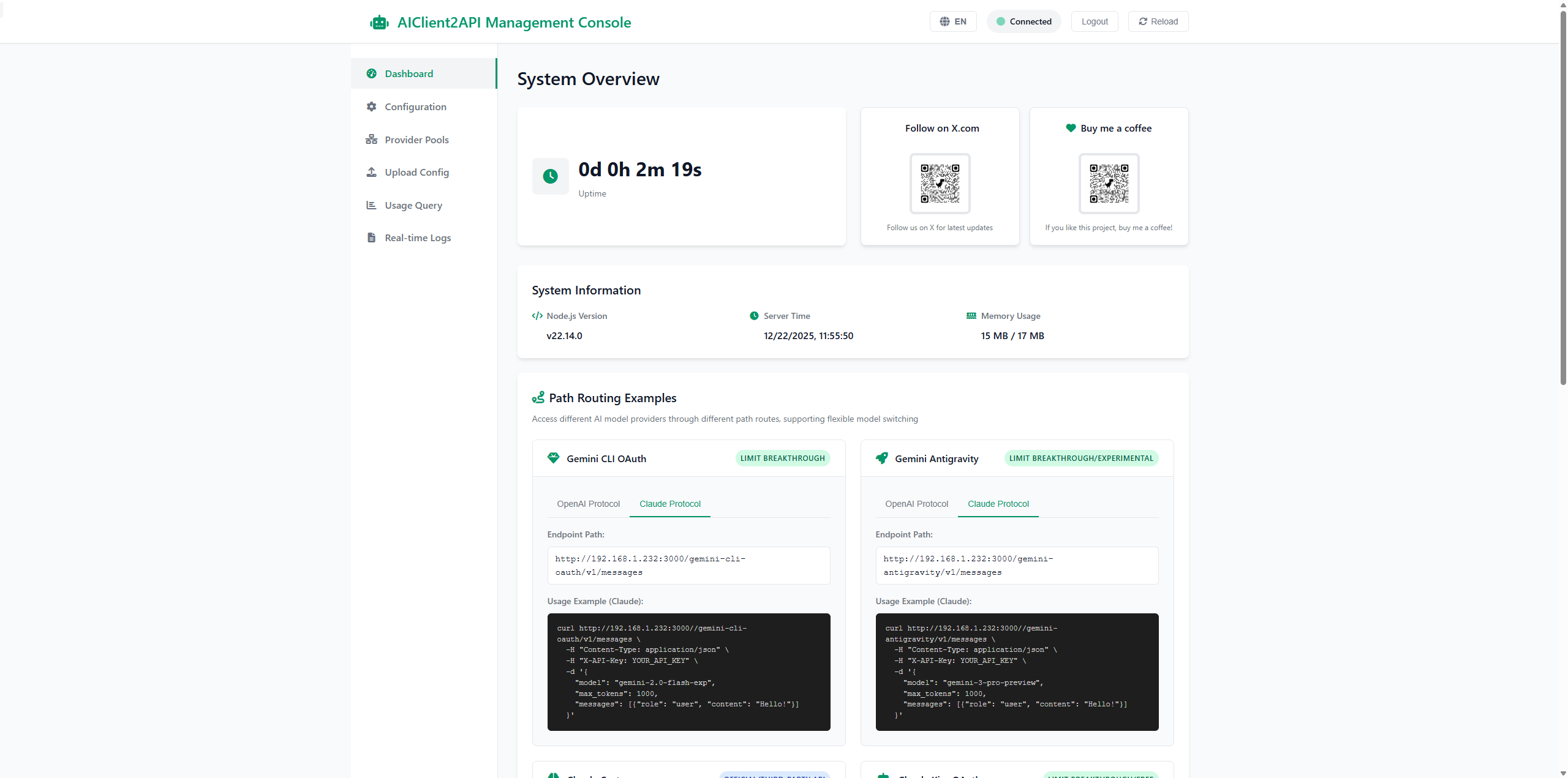
A functional Web management interface, including:
**📊 Dashboard**: System overview, interactive routing examples, client configuration guide
**⚙️ Configuration**: Real-time parameter modification, supporting all providers (Gemini, Antigravity, OpenAI, Claude, Kiro, Qwen), including advanced settings and file uploads
**🔗 Provider Pools**: Monitor active connections, provider health statistics, enable/disable management
**📁 Config Files**: Centralized OAuth credential management, supporting search filtering and file operations
**📜 Real-time Logs**: Real-time display of system and request logs, with management controls
**🔐 Login Verification**: Default password `admin123`, can be modified via `pwd` file
Access: `http://localhost:3000` → Login → Sidebar navigation → Take effect immediately
#### Multimodal Input Capabilities
Supports various input types such as images and documents, providing you with a richer interaction experience and more powerful application scenarios.
#### Latest Model Support
Seamlessly support the following latest large models, just configure the corresponding endpoint in Web UI or [`configs/config.json`](./configs/config.json):
* **Claude 4.5 Opus** - Anthropic's strongest model ever, now supported via Kiro, Antigravity
* **Gemini 3 Pro** - Google's next-generation architecture preview, now supported via Gemini, Antigravity
* **Qwen3 Coder Plus** - Alibaba Tongyi Qianwen's latest code-specific model, now supported via Qwen Code
* **Kimi K2 / MiniMax M2** - Synchronized support for top domestic flagship models, now supported via custom OpenAI, Claude
---
### 🔐 Authorization Configuration Guide
> **💡 Tip**: For the best experience, it is recommended to manage authorization visually through the **Web UI console**.
#### 🌐 Web UI Quick Authorization (Recommended)
In the Web UI management interface, you can complete authorization configuration rapidly:
1. **Generate Authorization**: On the **"Provider Pools"** page or **"Configuration"** page, click the **"Generate Authorization"** button in the upper right corner of the corresponding provider (e.g., Gemini, Qwen).
2. **Scan/Login**: An authorization dialog will pop up, you can click **"Open in Browser"** for login verification. For Qwen, just complete the web login; for Gemini and Antigravity, complete the Google account authorization.
3. **Auto-Save**: After successful authorization, the system will automatically obtain credentials and save them to the corresponding directory in `configs/`. You can see the newly generated credentials on the **"Config Files"** page.
4. **Visual Management**: You can upload or delete credentials at any time in the Web UI, or use the **"Quick Associate"** function to bind existing credential files to providers with one click.
#### Gemini CLI OAuth Configuration
1. **Obtain OAuth Credentials**: Visit [Google Cloud Console](https://console.cloud.google.com/) to create a project and enable Gemini API
2. **Project Configuration**: You may need to provide a valid Google Cloud project ID, which can be specified via the startup parameter `--project-id`
3. **Ensure Project ID**: When configuring in the Web UI, ensure the project ID entered matches the project ID displayed in the Google Cloud Console and Gemini CLI.
#### Antigravity OAuth Configuration
1. **Personal Account**: Personal accounts require separate authorization, application channels have been closed.
2. **Pro Member**: Antigravity is temporarily open to Pro members, you need to purchase a Pro membership first.
3. **Organization Account**: Organization accounts require separate authorization, contact the administrator to obtain authorization.
#### Qwen Code OAuth Configuration
1. **First Authorization**: After configuring the Qwen service, the system will automatically open the authorization page in the browser
2. **Recommended Parameters**: Use official default parameters for best results
```json
{
"temperature": 0,
"top_p": 1
}
```
#### Kiro API Configuration
1. **Environment Preparation**: [Download and install Kiro client](https://kiro.dev/pricing/)
2. **Complete Authorization**: Log in to your account in the client to generate `kiro-auth-token.json` credential file
3. **Best Practice**: Recommended to use with **Claude Code** for optimal experience
4. **Important Notice**: Kiro service usage policy has been updated, please visit the official website for the latest usage restrictions and terms
#### Account Pool Management Configuration
1. **Create Pool Configuration File**: Create a configuration file referencing [provider_pools.json.example](./configs/provider_pools.json.example)
2. **Configure Pool Parameters**: Set `PROVIDER_POOLS_FILE_PATH` in `configs/config.json` to point to the pool configuration file
3. **Startup Parameter Configuration**: Use the `--provider-pools-file